Pay LESCO Bill Online Using UBL Digital App
We’ve all been there. It’s a hot afternoon in Lahore, the fan is barely keeping the humidity at bay, and suddenly you remember—today is the last date for the LESCO bill. In the old days, this meant a frantic drive to the nearest bank branch, standing in a queue that seemed to move at the speed of a snail, and praying the counter wouldn’t close for a lunch break just as you reached the front.
Thankfully, those days are behind me. As someone who manages multiple websites and digital projects, I don’t have time for bank queues. A few months ago, I shifted all my utility management to the UBL Digital App. If you are a UBL account holder and still haven’t used the app for your LESCO bill online payment, you are missing out on serious peace of mind.
In this guide, I’ll walk you through exactly how to pay LESCO bill via UBL app, sharing some of the small “hacks” and mistakes I learned along the way so you don’t have to worry about a thing.
My First Time: The “Aha!” Moment
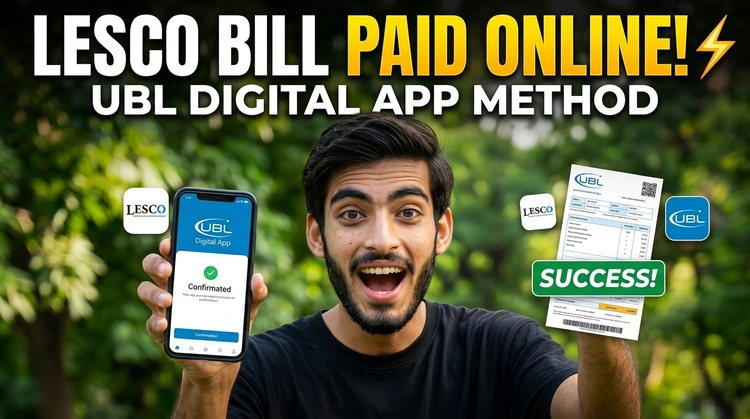
I’ll be honest—the first time I tried to pay LESCO bill through ubl app, I was a bit nervous. What if the money gets deducted and the bill still shows as “Unpaid”? What if I enter the wrong number?
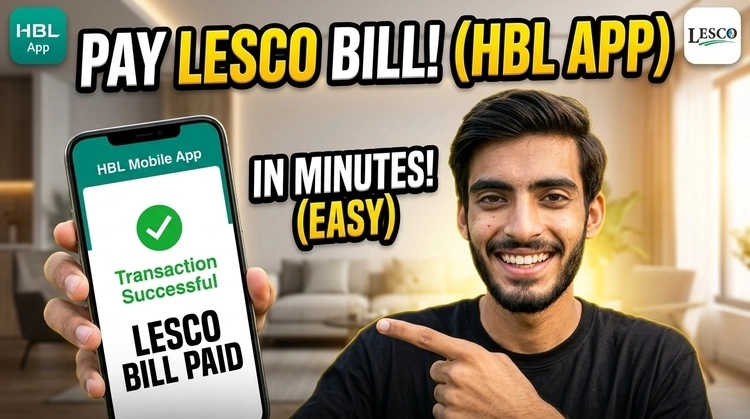
I decided to try it with a small bill first. I opened my UBL digital app, found the bill payment section, and within two minutes, it was done. The best part? I got an instant confirmation SMS and a digital receipt. No stamps, no stapled paper, just a clean digital record. Since then, I haven’t stepped into a bank for a bill payment even once.
How to Pay LESCO Bill via UBL App: Step-by-Step
If you are new to the ubl digital app lesco bill process, follow these steps. It’s much simpler than it looks.
Step 1: Secure Login
Open your UBL mobile app. I highly recommend enabling biometric login (fingerprint or face ID) if your phone supports it. It saves you from typing your password every time, which is a lifesaver when you’re in a hurry.
Step 2: Navigate to Payments
On the main dashboard, you’ll see an option labeled “Payments” or “Bill Management.” Tap on that. This is the hub for all your utility bill payment ubl needs, from electricity to gas and even internet.
Step 3: Add a New Biller
If this is your first time, you need to add LESCO as a “Biller.”
- Tap on “Add New Biller” or the “+” icon.
- Select “Utility Bills” as the category.
- Search for “LESCO” (Lahore Electric Supply Company).
Step 4: Enter the Consumer Number
This is where most people get confused. What is consumer number in LESCO bill?
On your physical bill (or if you check your bill on lescoonlinebillcheck.com), look for a 14-digit number. It’s usually located in the top-left or top-right box.
Personal Tip: Make sure you enter the digits correctly. The app usually validates it, but a double-check never hurts. You can also give this bill a “Nickname” (like “Home Bill”) so you don’t have to enter the number again next month.
Step 5: Verify and Pay
Once you enter the number, the app will automatically fetch your current bill amount and the due date. This is a great way to verify LESCO bill payment online details before hitting the button. If the amount matches your paper bill, you’re good to go.
- Tap “Pay Now.”
- Enter your T-PIN (Transaction PIN) or the OTP sent to your registered mobile number.
- Success! You’ll see a confirmation screen.
Common Mistakes I’ve Made (So You Can Avoid Them)
Even with a simple way to pay LESCO bill online, things can go sideways if you aren’t careful. Here are a few things I’ve learned:
- Waiting Until the Last Hour: I once tried to pay electricity bill with ubl app at 11:55 PM on the due date. The app went into scheduled maintenance right then. Lesson learned: Try to pay at least a day before, or at least during daylight hours to avoid “system busy” errors.
- Confusing Reference Number with Consumer ID: LESCO bills have both. In the ubl app lesco bill payment screen, it usually asks for the 14-digit reference number. If the app says “Invalid Number,” try the other one or check for any typos.
- Forgetting to Save the Receipt: While the app keeps a history, I always take a screenshot of the “Success” page. It’s just an old habit that helps if there’s ever a dispute with WAPDA later on.
Why Use UBL Digital for Bill Payment?
There are plenty of apps out there, but ubl mobile banking pakistan has some specific perks for LESCO consumers:
- No Extra Charges: Currently, lesco online bill payment ubl is free of service charges. You pay exactly what is on your bill.
- One-Tap Payments: Once a biller is added, next month’s payment takes literally 10 seconds.
- Secure Transactions: With multi-factor authentication, it’s a very secure lesco bill payment through ubl method compared to carrying cash to a shop.
- History Tracking: You can check paid lesco bill status in ubl app anytime by looking at your transaction history.
The Final Verdict
Switching to online lesco bill payment without visiting bank was one of the best “adulting” decisions I made. Whether you are using a ubl digital app on an Android or an iPhone, the process is seamless. It’s fast, it’s paperless, and it gives you back your most valuable asset: time.
If you are still holding that paper bill and looking at your car keys, put them down. Download the app, follow this ubl app electricity bill payment guide, and get it done from your couch.
Pro Tip: If you ever lose your physical bill, don’t worry. Just head over to a reliable portal like lescoonlinebillcheck.com to get your reference number or download a duplicate, then head back to your UBL app to finish the payment.
Happy digital banking!
FAQs: Things People Often Ask Me
Can I pay an overdue LESCO bill via UBL app?
Yes, you can! However, the app will show the “Amount After Due Date” (which includes the fine). It’s an easy method to pay lesco bill through ubl even if you are a day or two late.
How long does UBL bill payment take to reflect?
Usually, the transaction is instant in the bank’s records. However, LESCO’s own database might take 24–48 hours to update the status to “Paid” on their website. Don’t panic if you check the LESCO site immediately and it still shows unpaid. Your bank receipt is your legal proof.
Is LESCO bill payment available in UBL app 24/7?
Mostly, yes. But as I mentioned, avoid the midnight window between 12:00 AM and 1:00 AM, as many banks perform system backups during this time.