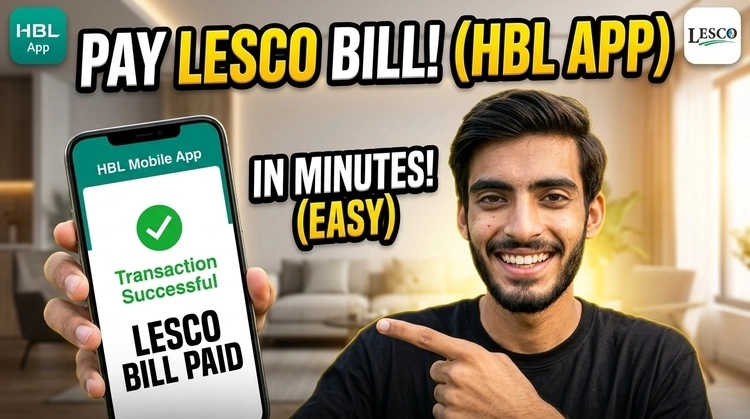
How to Pay LESCO Bill via HBL App
I still remember the first time I tried to pay my electricity bill at a bank branch in Lahore during mid-July. The heat was unbearable, the queue stretched out the door, and after forty minutes of waiting, the teller told me their “system was down.” I walked back to my car with a sweaty shirt and a still-unpaid bill, feeling like there had to be a better way to handle this.
Since then, I’ve moved almost all my utility management to my smartphone. If you’re an HBL account holder, you honestly have one of the most reliable tools for this right in your pocket. Using the HBL mobile banking app isn’t just about saving time; it’s about avoiding that specific brand of “bank queue stress.”
Here is my personal, hands-on guide on how to pay LESCO bill via HBL app based on years of doing it myself—including the little mistakes I made so you don’t have to.
The Reality of Paying Online: Why HBL?
There are a dozen apps in Pakistan that let you pay bills, but I’ve stuck with HBL digital banking for a few reasons. First, the integration with LESCO is solid. Some third-party wallets occasionally “hang” during the transaction, leaving you wondering if your money disappeared into a black hole. With HBL, the confirmation is instant, and the record stays in your transaction history forever.
Another thing I’ve noticed is that HBL handles the “overdue” calculation better than most. If you’re a day late, the app automatically fetches the revised amount including the fine, so you don’t have to guess or do the math yourself.
Before You Start: The “Reference Number” Trap
Before you even open the app, grab your paper bill. You are looking for the 14-digit Reference Number.
Important Observation: A lot of people get confused between the “Consumer ID” and the “Reference Number.” For LESCO online bill payment HBL, you strictly need that 14-digit reference string (usually found in the top-left or top-right box of your bill). If you enter the Consumer ID by mistake, the app will likely throw a “Record Not Found” error.
Step-by-Step: How I Pay My LESCO Bill Through HBL App
I’ve streamlined this process so it takes me less than 60 seconds. Here is the exact path you need to follow:
1. Secure Login
Open your HBL mobile app. I highly recommend setting up Fingerprint or Face ID. It’s a lot safer and faster than typing your password in a public place. Once you’re in, you’ll see the main dashboard.
2. Head to the “Bill Pay” Section
On the home screen, there is a prominent icon labeled “Bill Pay.” Tap that. You’ll see various categories like Utility, Education, and Credit Card. Naturally, we’re going into “Utility Bills.”
3. Adding a New Biller (The One-Time Setup)
If this is your first time, you need to “Add” your LESCO connection.
- Tap the “+” or “Add” button at the top.
- Search for “LESCO” in the list of companies.
- Now, enter that 14-digit Reference Number we talked about.
- Real-life Tip: Give it a “Nickname.” I call mine “Home Electricity.” This way, next month I don’t have to hunt for the paper bill; I just tap the nickname and pay.
4. Reviewing the Data
Once you enter the number, the app will “fetch” your bill from the LESCO servers. Stop here for five seconds. Check the “Consumer Name” shown on the screen. Does it match yours or your landlord’s? If it does, you’re good to go. The app will show you the exact “Amount Within Due Date” and “Amount After Due Date.”
5. The Transaction
Tap “Pay.” HBL usually asks for a transaction password or sends an One-Time Password (OTP) to your registered mobile number via SMS. Enter it, and click confirm.
What Happens After You Pay? (My Observations)
One question I get asked a lot is: “How do I know LESCO actually received the money?“
As soon as you finish, you’ll get a success screen. Do not just close the app. Look for the “Download” or “Share” icon. I always download the PDF receipt and save it to a folder on my phone or send it to my own WhatsApp.
In my experience, LESCO’s own “online check” website might still show your bill as “Unpaid” for about 24 to 48 hours. This is normal. It takes a little time for the bank’s data to sync with the WAPDA servers. Your HBL receipt is your legal proof of payment in the meantime.
Mistakes I’ve Learned From (Real Talk)
Even with the easiest way to pay LESCO bill through HBL, I’ve had my share of “oops” moments:
The 11:00 PM Deadline: I once tried to pay WAPDA bill through HBL app at 11:45 PM on the very last day. The HBL system went into “Daily Maintenance,” and the transaction wouldn’t go through. I ended up paying the late fee the next morning. My advice? Treat the day before the due date as your final deadline.
Duplicate Payments: If the app lags and you hit “Pay” twice, don’t panic. Usually, HBL is smart enough to block a duplicate transaction to the same reference number within minutes, but it’s better to wait for the confirmation SMS before trying again.
Insufficient Balance: It sounds silly, but I’ve had a transaction fail because I was exactly 5 Rupees short due to a random bank SMS alert fee that deducted earlier that day. Always keep a tiny buffer in your account.
HBL Konnect vs. HBL App
Some people ask if they should use HBL Konnect bill payment instead. While Konnect is great (especially if you don’t have a full-fledged bank account), the main HBL mobile banking app is more robust for regular account holders. It gives you a much better “Bill Management” dashboard where you can see all your previous payments in a neat list.
Is It Safe?
If you’re worried about security, I get it. Online fraud is a real concern. However, HBL digital banking uses multi-factor authentication. This means even if someone knows your password, they can’t pay a bill or move money without the OTP sent to your physical SIM card. It is significantly more secure than carrying a large amount of cash to a bank or a local “easy paisa” shop.
The Big Picture
Moving to online LESCO bill payment using HBL was one of the best “small” life upgrades I’ve made. It turned a monthly chore that took an hour into a task that takes seconds. No more driving in traffic, no more lost receipts, and no more “system down” excuses at the bank counter.
If you’re still waiting in lines, give the app a shot this month. Just remember to double-check that 14-digit reference number, save your digital receipt, and try not to wait until the very last hour of the due date.
Got stuck on a specific step or seeing a weird error code? Drop a comment below, and I’ll try to help you troubleshoot it based on what I’ve seen!
Frequently Asked Questions
How long does HBL bill payment take?
The money leaves your account instantly. The “official” LESCO record usually updates within 2 working days.
Can I pay my LESCO bill without visiting the bank if I don’t have the HBL app?
Yes, you can use HBL Internet Banking on a laptop, but the app is far more convenient for scanning barcodes or paying on the go.
What if the “Pay” button is greyed out?
This usually happens if the LESCO server is down for maintenance (usually late at night) or if your internet connection is unstable. Close the app and try again in 10 minutes.
Can I pay an overdue bill?
Absolutely. You can pay overdue LESCO bill via HBL app. The app will simply show the higher amount (including the fine) as the payable total.